Progam Basics
The Basic Parts
The title bar caption tells you the application you
are running; when you have selected a wallet or a dataset, their names also
appear in the title bar. The menu bar contains the basic
menu items that control some of the application's actions.
The menu bar is the standard Windows application menu set that appears below
the window's title bar.
The toolbar is a collection of icons just below the menu bar. See below for
more information.
The main window is divided into three parts. The column to
the left is the wallet pane. It shows the contents of your
data wallets. You many open more than one wallet at the same time, and you
can copy datasets between open wallets.
The right-hand area is the dataset pane . It
shows the detailed contents of the dataset that you have currently
selected in the wallet pane.
Along the bottom of the window is the status bar. It
tells you which wallet file you're viewing and whether or not it has been
altered.
The wallet pane shows the titles of each open wallet and the names of
the datasets in each wallet. If you click on a particular dataset's name,
the right-hand dataset pane will be redrawn to contain the detail information
in that wallet.
The relative sizes of the left and right panes can be changed.
Slowly move the mouse across the boundary between the panes and it will change
to a "splitter" form, which appears as a vertical bar. Hold down the
left mouse button and you'll be able to drag the splitter to a new location,
thus changing the relative widths of the two panes.
Experiment With Options
DataWallet2 has many features such as dynamic data validation that are not documented here.
Experiment with the application by clicking on various menu items using a temporary wallet.
The Menu Bar
The "File" Menu
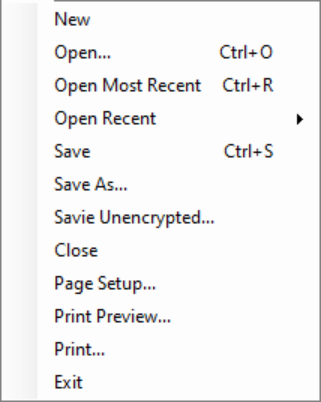 To create a new wallet or open an existing one, use the File menu.
For all other operations, right-click on a particular element in the wallet
pane and choose the action you desire from the context menu. Some
operations will not be available from every location in the pane.
To create a new wallet or open an existing one, use the File menu.
For all other operations, right-click on a particular element in the wallet
pane and choose the action you desire from the context menu. Some
operations will not be available from every location in the pane.
The "Open" item lets you choose a wallet to open. The "Open Recent" will open either the most
recent file you've previously opened or the file you've marked as a "Favorite".
The other options are normal Windows application options.
The "Actions" Menu
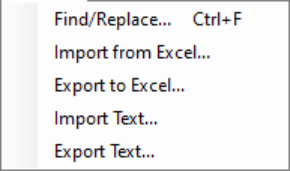 This menu contains items related to finding and replacing text, along with various import/export operations.
- Find/Replace allows you search for text strings and optionally replace them with new text.
- Import From Excel... allows you to import an Excel workbook and create a new wallet. Each worksheet will become a dataset.
- Export to Excel... allows you to generate a new Excel workbook that contains every dataset in the wallet as a worksheet.
- Import Text... allows you to import a CSV (comma-separated variable) file as a dataset into the current wallet.
- Export Text... allows you to export a dataset as a CSV file.
The "Options" Menu
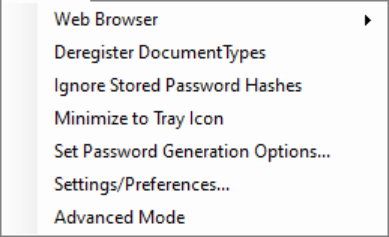
This menu contains various settings and options.
- Web Browser
This option lets you choose an installed web browser to use for following links (URLs) stored in datasets.
-
Register/Deregister Document Types
This option usually only needs to be used when the progam is uninstalled.
It updates your system about the file icons used by DataWallet2.
If you installed the program using an MSI file, these operations are automatic.
-
Ignore Stored Password Hashes
DataWallet2 stores a "hash" value for each wallet password you enter. This means you don't have to
hit the enter key after typing a password. If you don't want this feature, just click on this item.
- Minimize To Tray Icon
Use this option to keep DataWallet2 minimized into your taskbar's collection of quick access icons.
- Set Password Generation Options
Shows a dialog window that allows configuration of the types of passwords to generate in datasets.
- Settings/Preferences
Shows a dialog window for configuration of colors and various settings.
- Advanced Mode
Click this option to use various advanced features (not fully documented).
The Toolbar
The toolbar is a collection of icons immediately beneath the menu bar.
If you hover your mouse cursor over an icon it will explain its function.
The elements of the toolbar are:
- Open Most Recent/Favorite
- Open Wallet
- Save Wallet File
- Close Wallet File
- Hide/Show the Menu Bar
- Find in Wallet
- Find in Dataset
- Import Text
- Recover Current Dataset
These options are fairly self-explanatory. The final option "Recover Current Dataset" is different
Since DataWallet2 doesn't support "undo/redo" operaions, the app saves the current dataset each time you start to
edit a dataset. At any later time, you can restore an earlier version of the dataset using this option.
The Wallet Pane
The left-hand wallet pane's context menu allows you to perform basic actions
involving single datasets or entire wallet files.
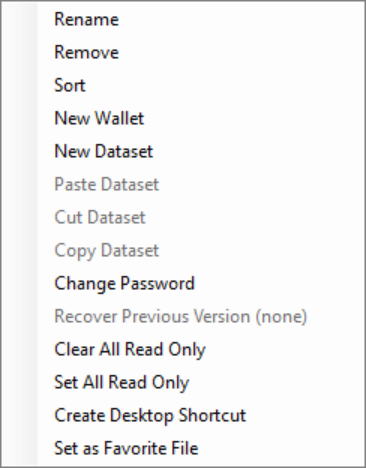
Use "Change Password" to change the encryption password/passphrase for a wallet.
Use the "Read Only" settings to temporarily block or allow editing of one or more datasets.
The "Set As Favorite" option stores the current wallet file as your favorite. You can then open it
directly from the toolbar or the File menu. However, it is usually more convenient to
create a desktop shortcut for the wallet. Then it is automatically opened when you double-click
on the shortcut.
This menu contains standard operations for removing, copying, cutting and pasting dataset within a
wallet or between wallets. You may also recover earlier versions of a dataset from within the same session.
Drag-and-Drop in the Wallet Pane
Datasets can be moved within a wallet file or into another wallet. This is done by
holding down the Control key and starting a drag-and-drop operation to the desired location.
Wallets cannot be dragged.
Creating a Desktop Wallet Shortcut
After creating your wallet file and saving it to your system drive,
you may create a desktop shortcut that opens your wallet file directly using
DataWallet2
.
Choose "Create Desktop Shortcut" from this menu.
Your shortcut will have a wallet icon like this: 
The Dataset Pane
The right-hand dataset pane shows the contents of a single dataset.
You may edit cells individually, copy and paste information and sort
data by clicking on column names.
To add a new row, use the final, specially marked row in the grid. Any typing in there will create a new row.
To paste a row from another application such as Excel, first add a new row by typing anything in the final (special) row and then hit enter.
After that, right-click in the newly added row and choose the "Paste/Row" menu item from the popup menu.
You may add rows at specific locations using the dataset grid context menu (see below).
You may select one or more rows by holding down the shift key while clicking. Selections must be contiguous (no gaps).
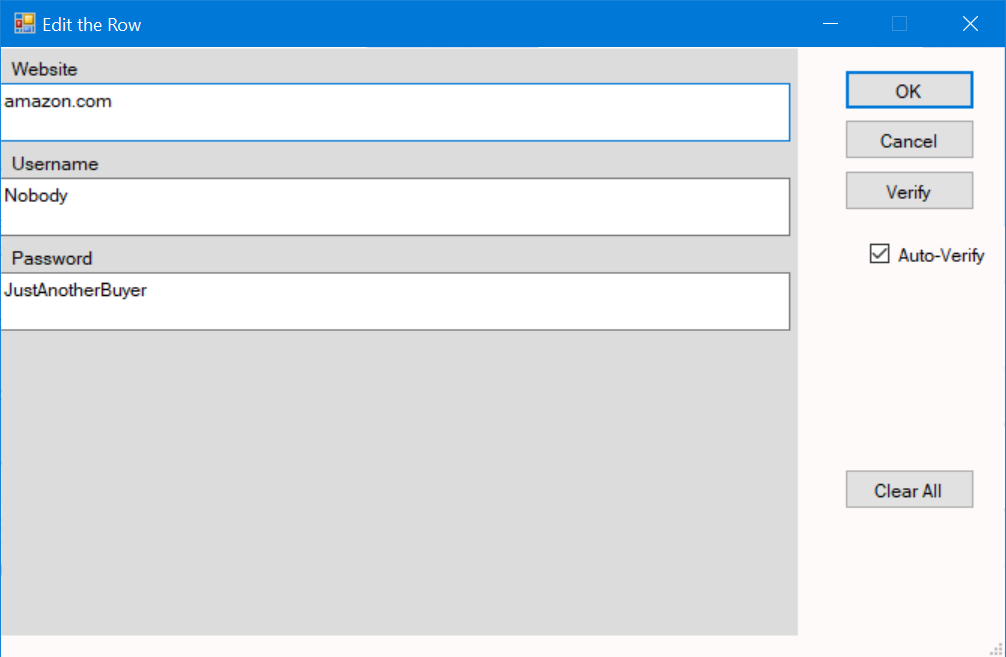
For easy editing and viewing of long rows, double-click on any row and the row editor will appear.
Columns may be dragged into new locations by left-clicking on a column header, holding down the mouse button and dragging the column into a new
location. Clicking on column headers sorts the rows into a new order by the contents of that column.
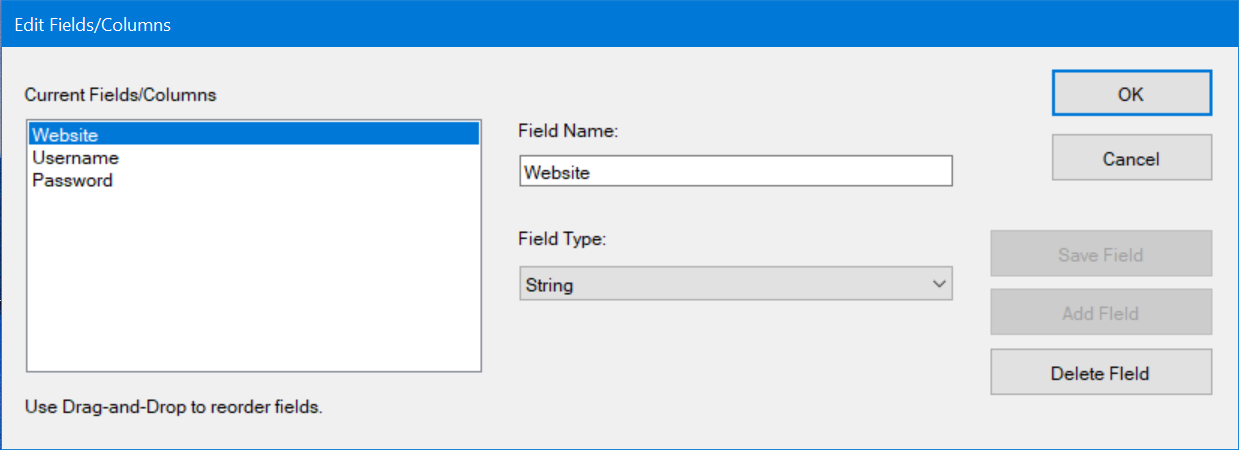
To perform detailed editing of the names and ordering of columns, right-click on the dataset pane and choose "Field Types...".
This will reveal the "Edit Field Types" dialog window.
Right-clicking on the dataset pane shows the menu for grid operations. Items in the grid menu may be enabled or disabled depending on where
you clicked.
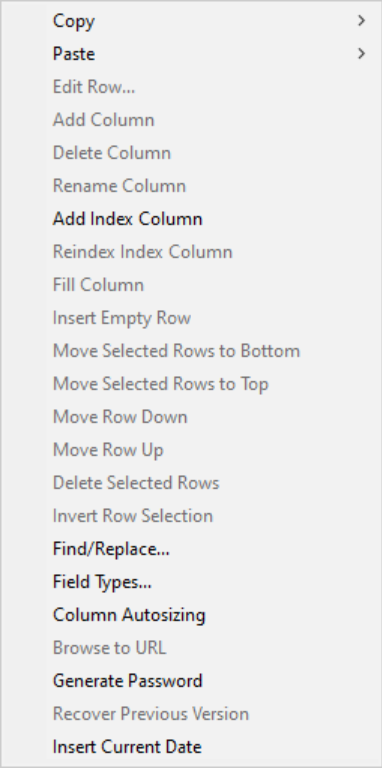
The dataset pane's context (right-click) menu provides many functions for the cells, rows and columns of a
dataset grid. Among the most important are "Copy" and "Paste". These are the primary means of logging into a
password-protected website.
The dataset pane shows the detailed columns and rows of information from the
dataset currently selected in the wallet pane.
The bar at the top of the grid or spreadsheet-like table shows the names of
the columns. Below that, the rows of information are displayed.
Each field or cell can be edited simply by clicking on it and typing new
information. To move from cell to cell you can use the Tab key; to
move backwards from cell to cell, hold down the shift key and type the Tab key.
There must be at least one column and one row in a dataset.
DataWallet usually resizes the grid columns to fit the data they contain. Using the "Column Autosizing"
option to control this feature.
If the current cell appears to be a valid URL (web link), you may use this option to browse to that
web page.
The "Field Types" item lets you specify exact data types for any column, rename columns, create and delete columns
and similar features.
The "Generate Password" item will generate a password and store it into the current cell. See "Password Generation Options"
in the "Options" menu to control the length and contents of generated passwords.
The "Insert Current Date" will store the today's 'date into the current cell.
The option "Browse to URL" is enabled whenever the chosen cell appears to contain a URL (web address). The web page will open in your default browser.
The Status Bar
The Status bar is the horizontal area at the bottom of the window. It
displays the name of the wallet currently select and an asterisk if the wallet
has been modified since it was loaded.