DataWallet2 Overview
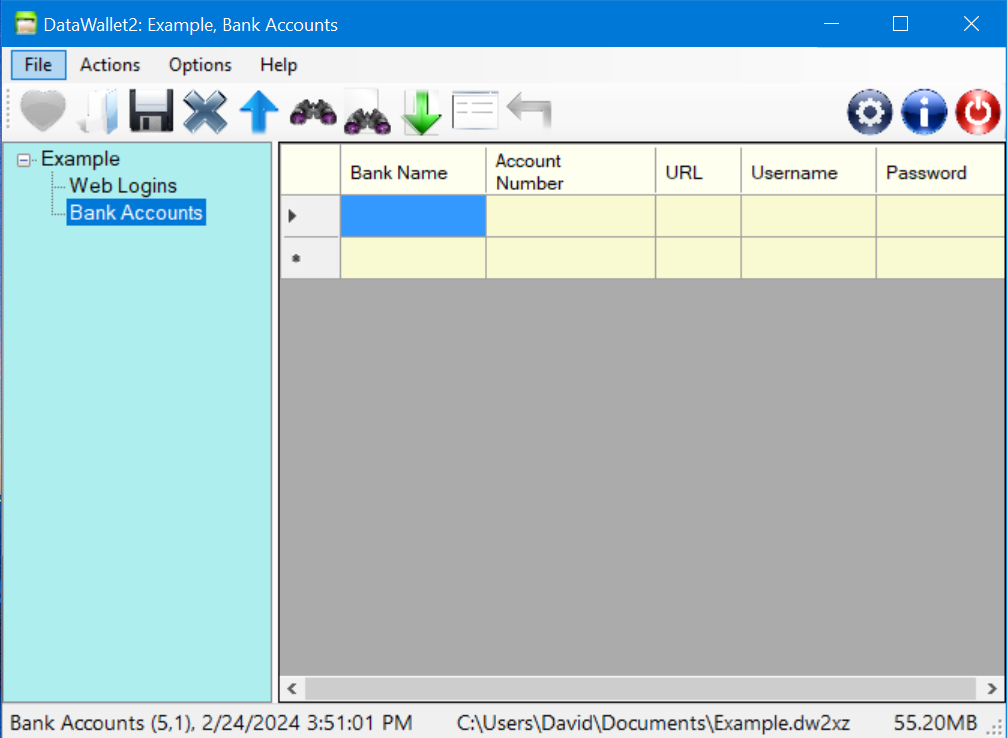
Main application window
What is it?
DataWallet is a Microsoft Windows .Net Framework application that creates encrypted files known as "wallets". Each wallet can store varieties of personal information in a simple spreadsheet-style format. Wallet files are stored with strong encryption based upon a "passphrase", which is a string of characters used to encode the entire file. Files may also be stored unencrypted if desired. File import and export with Excel is supported.
DataWallet2 is a "password manager", but it does not directly interact with web browsers. Its goal is helping users safely store all types of textual information. To use with websites, just copy and paste the required information to the desired web page. You may click in any grid cell and hit CTRL+C (hold control key down and hit 'C').
It is easy to use DataWallet2 with a web browser using cut-and-paste operations. DataWallet2 allows you to paste data into a single cell from almost any appication. You cannot paste entire rows from external applications, only from DataWallet2.
About Encryption
DataWallet uses AES 256-bit encryption, which is one of the strongest, most modern forms of encryption available. When reopening a wallet, you'll be asked for the passphrase that is used to decrypt its contents. As you would expect, without the correct passphrase the resulting file cannot be correctly decrypted. The passphrase you use is not stored anywhere on your computer or in the file, so forgetting it renders your wallet useless.
Parts of a Wallet
Each wallet has a title you determine. Within the wallet, as shown on the left-hand column, are various "datasets" of information; each dataset groups information that share a common organization. When you select a set from a wallet, the right-hand table (grid) is filled with the information from the set. You can then edit the data, add new data, or reorganize the data set by adding, moving, deleting or renaming columns. Rows in the dataset can be sorted, edited, deleted or moved as you desire.
First Steps
Basic Usage
Most of the time, you'll copy cells from a DataWallet2 dataset and paste that data into a web browser or other form.
The other primary interaction in DataWallet is through "context" or right-click menus.
Create a Wallet
Right-click in the left-hand pane and choose "New Wallet" or choose "New Wallet" from the File menu. Then right-click on the name of the wallet ("New Wallet") and choose "Rename". Finally, save the wallet using "File/Save". You will be prompted for a password or phrase to use for encrypting the file. A new wallet will appear on the left-hand side of the main window with a default dataset describing a collection of web addresses (URLs).
After creating your wallet file and saving it to your system drive,
you may create a desktop shortcut that opens your wallet file directly using DataWallet2
.
This requires that you register the document types with the operating system using the Options menu item
"Register Document Types".
Once the document types are registered, right-click on the name of your wallet in the left-hand pane of the application window and choose
"Create Desktop Shortcut".
Your shortcut will have a wallet icon like this: 
Adding Dataset
To create a new dataset (data grouping), right-click on the wallet name in the left-hand pane and choose "Add Dataset".
Arranging a Dataset
The default dataset contains three columns. You may use them as-is, rename them, delete them or add new columns as you desire.
Entering Data
To enter new data, type somewhere in the special "last" row of a grid. To edit existing data, click in the desired cell and edit the information.
To change existing information, just click in the cell and start typing.
Using Data
As stated, the most common interaction with data is to copy the contents of a dataset grid cell to the clipboard, then switch to another application and paste the data.
This order is reversed when saving information from another application into DataWallet2.
Working With Datasets
You can add new fields (columns) to a dataset, rename the fields, reorder or delete fields.
To sort the data, click in the field "header" (name) cell.
You may reorder the columns by clicking on a column header and dragging it to a new location.
Importing and Exporting Data
Most DataWallet wallets should be fairly small, since only the most private information needs to be kept in them. However, you may already (as many people do) use Microsoft Excel to maintain such information. If so, you can directly import an Excel workbook as a wallet to convert spreadsheets to "datasets" within a new wallet, and you can export entire wallets and sets back to Excel.
DataWallet2 supports direct import of CSV (comma-separated variables) files. These files may be created with Excel or many other tools.